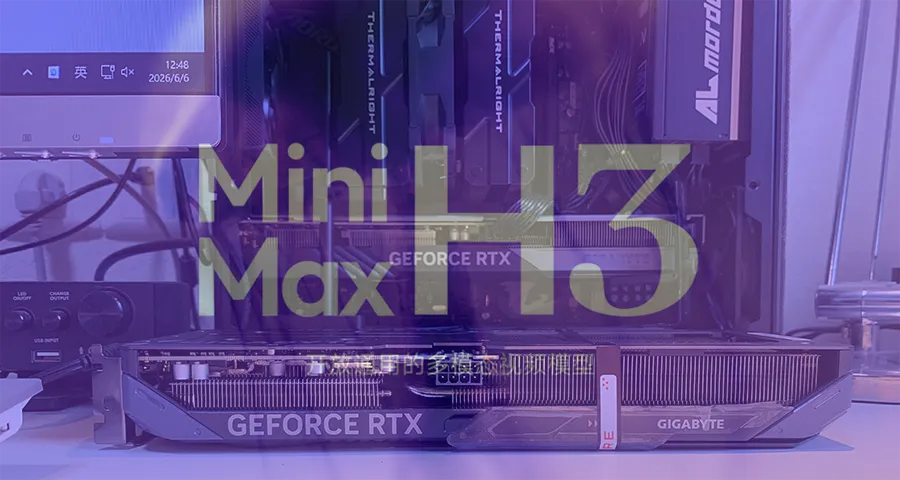
MiniMax H3 is a multimodal video model that can take images, video clips, and audio as reference material. Its ComfyUI model files total 39.55 GB, which makes a 16 GB graphics card look like a poor fit on paper.
We tried it anyway on an RTX 5060 Ti 16GB. It generated a 5-second clip at 1920 × 1088, as long as you can wait more than an hour for it. Here are the times, the memory use, and how it compares with a 32 GB RTX 4080 SUPER.
Test setup
- GPU: RTX 5060 Ti 16GB
- Platform: Gigabyte Z790, Intel Core i5-14600KF, 32 GB DDR5-6400 (the same PC as in our RTX 5060 Ti platform upgrade test)
- ComfyUI: official release 0.32.0
- Workflow: official MiniMax H3 text-to-video template
- Models: the same four files as in our RTX 4080 SUPER test, 39.55 GB in total
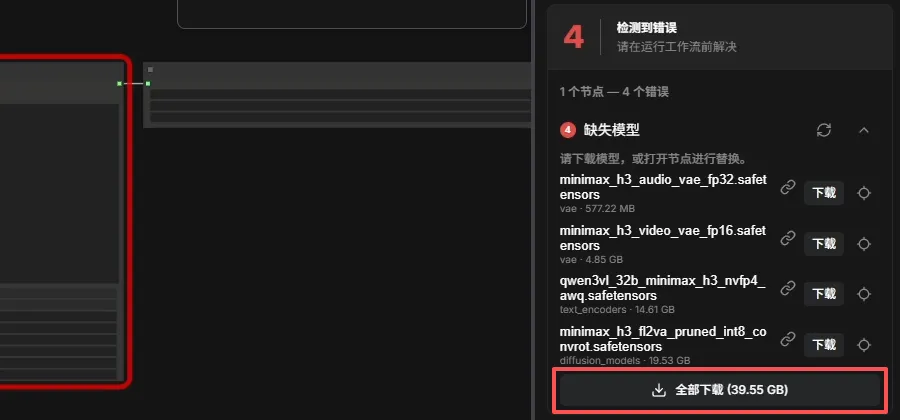
We tested text-to-video only. Image-to-video and reference-to-video add more input material and take longer as you add reference images, video, and audio, so treat these numbers as a baseline.
Test 1: default settings, 864 × 480
The official workflow defaults to 0.4 megapixels in its resolution selector, which produces 864 × 480, with a 5-second clip length.
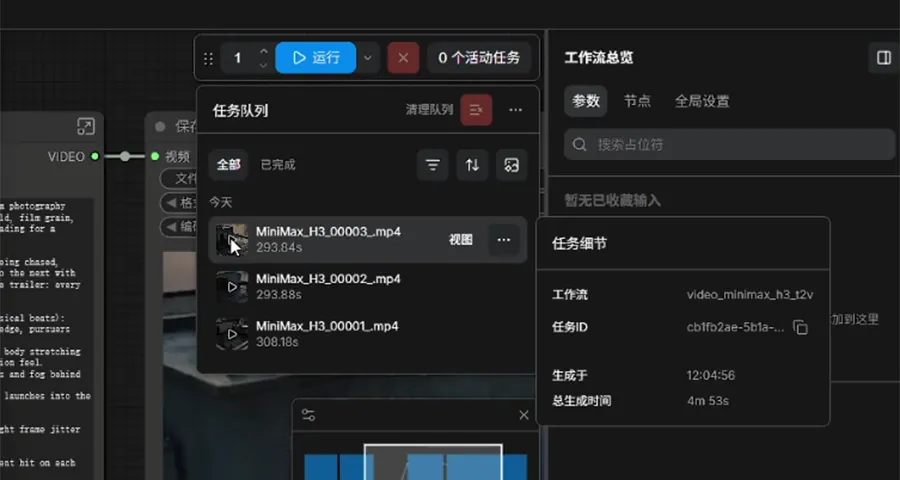
| Run | Time |
|---|---|
| First | 308.18 s |
| Second | 293.88 s |
| Third | 293.84 s |
Warm runs settled at just under five minutes per clip. During generation, Task Manager showed:
- Dedicated GPU memory: 14.0 of 16.0 GB
- Shared GPU memory: 11.5 GB
- System RAM: 27.7 of 31.8 GB (87%)
- GPU utilization: 100%, at 74 °C
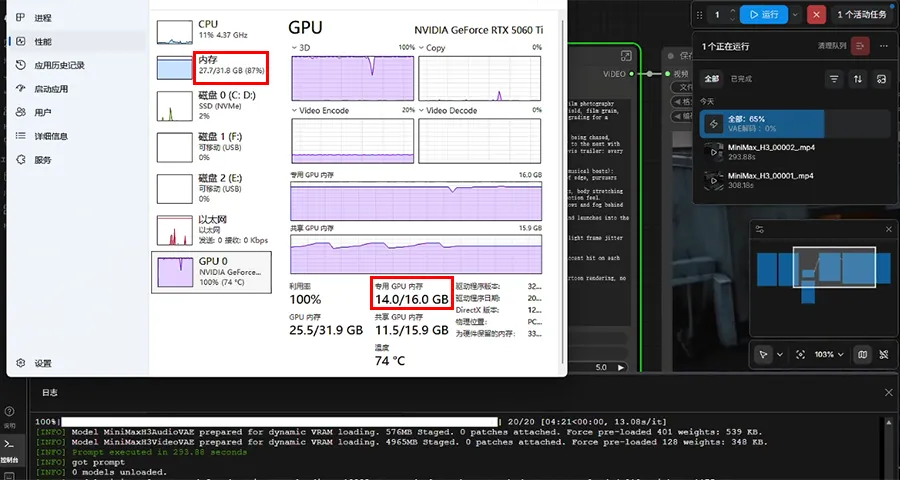
The ComfyUI log explains how a 39.55 GB pipeline fits on a 16 GB card: each component is “prepared for dynamic VRAM loading”, with its weights staged rather than held in VRAM in full. Part of the model lives in system RAM and moves to the GPU as needed. With 32 GB of system RAM, 87% usage leaves little headroom.
Compared with the RTX 4080 SUPER 32GB
We ran the same model files on a modified 32 GB RTX 4080 SUPER in a separate PC. The setups differ in more than the GPU, so read this as a system-to-system comparison.
| RTX 5060 Ti 16GB | RTX 4080 SUPER 32GB (modified) | |
|---|---|---|
| ComfyUI version | 0.32.0 | 0.30.0 |
| System RAM installed | 32 GB | 64 GB |
| 864 × 480, first run | 308.18 s | 396.18 s (models on HDD) |
| 864 × 480, warm run | 293.84 s | 148.32 s |
| 1920 × 1088 | 4,301.52 s | 3,186.74 s |
| Dedicated GPU memory used | 14.0 GB | 31.6 GB |
| System RAM used | 27.7 GB | 53.5 GB |
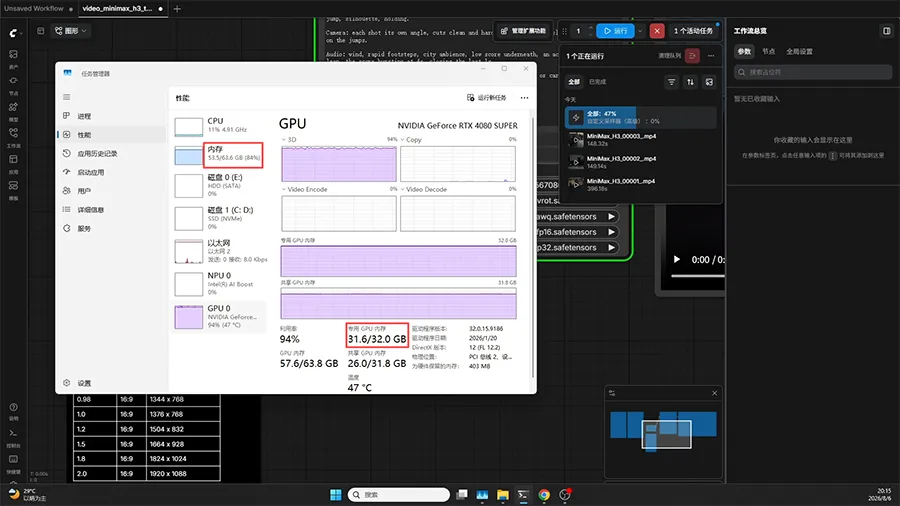
The 4080 SUPER was about twice as fast for warm 864 × 480 runs. At 1920 × 1088 the gap narrowed: the 5060 Ti took 35% longer, about 18.6 minutes more.
The 5060 Ti system also used roughly half the VRAM and half the system RAM. Part of that is capacity: it has half as much of both, and ComfyUI’s dynamic loading adapts to the memory available. Format support may also play a role. The text encoder uses NVFP4, a 4-bit format that the RTX 50-series Blackwell architecture supports natively and the RTX 40-series Ada architecture does not. This comparison can’t separate the two effects.
Test 2: 1920 × 1088, 5 seconds
Next, we set the megapixels value to 2.0 for 1920 × 1088, keeping the clip length at 5 seconds.
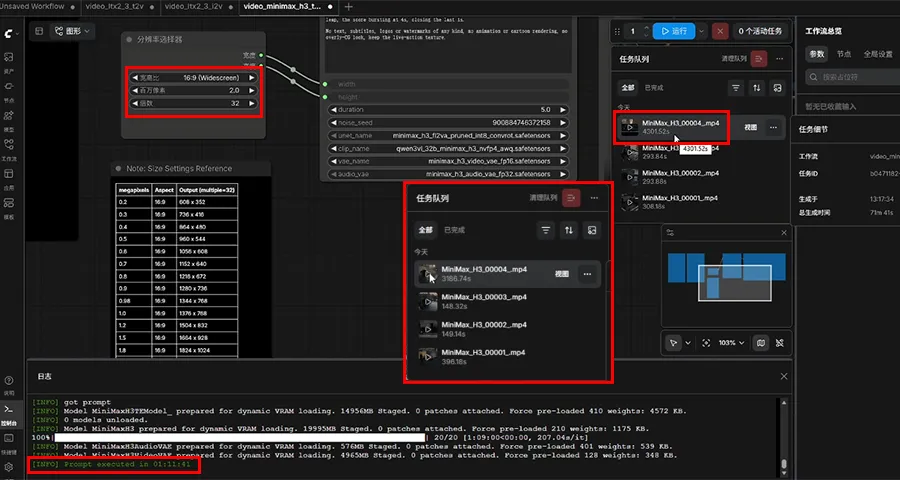
The run completed in 4,301.52 seconds (1 h 11 min 41 s) without an out-of-memory error. The log shows 20 sampling steps at about 207 seconds per step, with the diffusion model (19,995 MB) and text encoder (14,956 MB) both staged for dynamic VRAM loading.
Limits: longer 1080p clips
Five seconds is the practical ceiling at this resolution on this card: generating a single 10-second 1920 × 1088 clip ran out of VRAM.
To produce longer 1080p video, we generated several 5-second segments with the reference-to-video workflow and joined them afterwards. Reference-to-video accepts up to 9 images, 3 video clips, and 3 audio clips as references. Feeding the same character and scene references into every segment keeps the people and setting consistent between them. The only real drawback is the time it takes.
Conclusion
An RTX 5060 Ti 16GB with 32 GB of system RAM can run MiniMax H3 locally, including 5-second clips at 1920 × 1088. ComfyUI’s dynamic VRAM loading is what makes a 39.55 GB pipeline fit, at the cost of heavy system RAM use and long render times: about 5 minutes per 864 × 480 clip and about 72 minutes per 1080p clip.
If you work this way, iterate at the default resolution, render 1080p only for finals, keep 5-second segments for longer videos, and expect 32 GB of system RAM to be tight.
Useful? Explore more practical guides in the AICoreShop library.